How to Save, Export, and Reuse Microsoft Word Styles (The Complete Guide)
We created this guide for our authors to reference every time they need it. We hope it helps all authors — and everyone using Microsoft Word — just as much.
You spent hours getting your Word document looking exactly right. The fonts. The spacing. The headings. Everything is perfect.
Now you need that same look in a new document.
And you realize you have no idea how to get it there.
This guide fixes that. We cover every method, step by step, one click at a time. No jargon. No assumptions. Just the clearest instructions you will find anywhere.
Bookmark this page. You will come back to it.
First, a Quick Word About “Styles” in Word
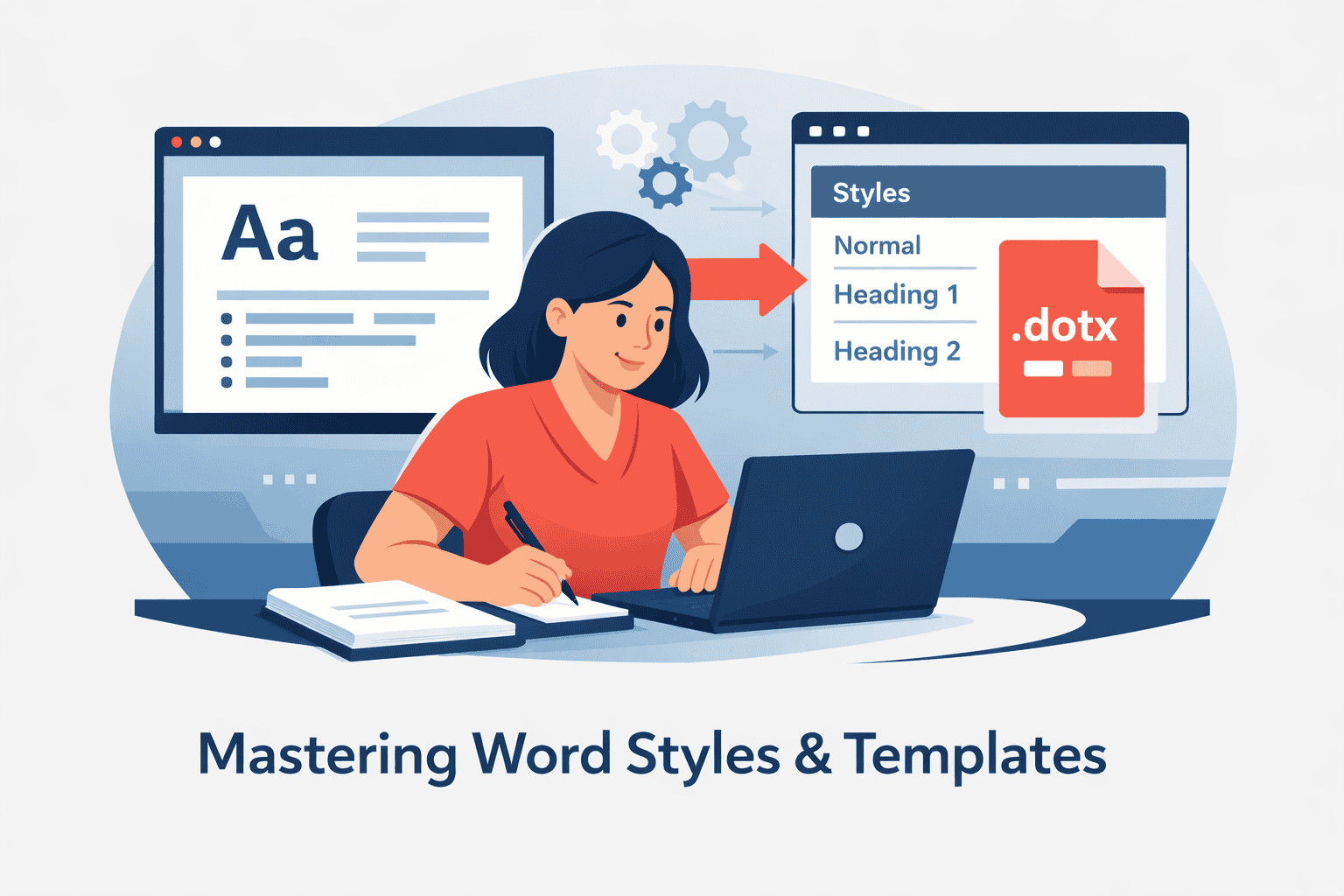
A style is just a saved set of formatting rules. Font, size, color, spacing, indentation — all bundled together under one name.
When you click “Heading 1” in the ribbon, you are applying a style. When you type regular text, you are using the “Normal” style. Word comes with dozens of built-in styles, and you can create your own.
The goal of this guide is simple: take the styles from one document and use them somewhere else.
There are four ways to do this. We will walk through every single one.
Method 1: The Template File (.dotx)
Best for: Starting new documents that need the same look every time.
Think of it like this: A template is a master copy. Every time you open it, Word creates a fresh document with all your styles already loaded. The template itself never changes.
How to Create a Template
Step 1. Open the document that has the styles you want to keep.
Step 2. Click File in the top-left corner.
Step 3. Click Save As.
Step 4. In the “Save as type” dropdown, choose Word Template (.dotx).
Step 5. Give it a name you will remember. Something like “My Book Template” or “Company Report Template.”
Step 6. Word will automatically suggest saving to your Templates folder. Let it. This is important. The path is usually:
C:\Users\[YourName]\AppData\Roaming\Microsoft\Templates
(If you do not see the AppData folder, it is hidden. Type the path directly into File Explorer’s address bar.)
Step 7. Click Save.
That is it. Your template now exists.
How to Use Your Template
Step 1. Open Word.
Step 2. Click File.
Step 3. Click New.
Step 4. You will see a row of tabs near the top. Click Personal (or Custom in some versions).
Step 5. Click your template.
Word opens a brand-new document with all your styles already in place. The template stays untouched.
Tip: If you do not see the “Personal” tab, your template might not be in the right folder. Go back and make sure it is saved in the Templates folder from Step 6 above.
Method 2: The Style Organizer (Import/Export)
Best for: Pulling styles from one existing document into another existing document.
This is the method most people search for. You already have two documents. One looks right. The other does not. You want to copy the styles across.
One-Time Setup: Enable the Developer Tab
The tool you need lives under a tab that Word hides by default. You only have to do this once.
Step 1. Click File.
Step 2. Click Options (at the bottom of the left sidebar).
Step 3. Click Customize Ribbon in the left panel.
Step 4. In the right column, find Developer and check the box next to it.
Step 5. Click OK.
The Developer tab now appears in your ribbon. You will never need to do this again.
How to Import Styles
Step 1. Open the document you want to bring styles into (the destination).
Step 2. Click the Developer tab in the ribbon.
Step 3. Click Document Template.
Step 4. In the window that appears, click the Organizer button at the bottom.
You will now see two columns. On the left is your currently open document. On the right is the Normal template (Normal.dotm).
Step 5. On the right side, click Close File.
The button changes to Open File.
Step 6. Click Open File.
Step 7. In the file browser, change the file type dropdown (bottom-right corner) to All Files or All Word Documents. This lets you see .docx files, not just templates.
Step 8. Navigate to the document that has the styles you want (the source). Select it and click Open.
Now the right column shows the styles from your source document.
Step 9. Select the styles you want to copy from the right column. Hold Ctrl and click to select multiple styles.
Step 10. Click the Copy button (the arrow points from right to left).
Step 11. If Word asks whether you want to overwrite existing styles with the same name, click Yes (or Yes to All if you are copying many styles).
Step 12. Click Close.
Your destination document now has the styles from your source document.
Alternate Way to Reach the Organizer (No Developer Tab Needed)
If you prefer not to enable the Developer tab, you can get to the same place through the Styles pane.
Step 1. On the Home tab, click the tiny arrow in the bottom-right corner of the Styles group. This opens the Styles pane.
Step 2. At the bottom of the Styles pane, click the third button from the left — Manage Styles (it looks like a capital A with a checkmark).
Step 3. Click Import/Export at the bottom of the Manage Styles window.
You are now in the same Organizer. Follow Steps 5 through 12 above.
Method 3: Save as a Style Set
Best for: Quickly switching the look of any document with one click.
A Style Set saves the formatting of your built-in styles (Normal, Heading 1, Heading 2, etc.) so you can apply them to any document instantly. This works best for built-in styles. Custom styles with unusual names may not transfer with this method.
How to Save a Style Set
Step 1. Open the document with the styles you like.
Step 2. Click the Design tab in the ribbon.
Step 3. In the Document Formatting group, click the small down-arrow to expand the Style Set gallery.
Step 4. At the bottom of the gallery, click Save as a New Style Set.
Step 5. Give it a name and click Save.
How to Apply a Style Set
Step 1. Open any document.
Step 2. Click the Design tab.
Step 3. In the Document Formatting group, look for your Style Set under Custom (it appears above the built-in options).
Step 4. Click it.
Every paragraph that uses a built-in style will instantly update to match your saved formatting.
Important note: Style Sets only affect built-in styles like Normal, Heading 1, Heading 2, and so on. If your document relies on custom-named styles (like “ChapterTitle” or “PullQuote”), use Method 2 instead.
Method 4: Attach a Template to an Existing Document
Best for: Applying your template styles to a document that was created without the template.
This method takes a .dotx template file and connects it to a document that already has content in it.
Step 1. Open the document you want to update.
Step 2. Click the Developer tab.
Step 3. Click Document Template.
Step 4. Next to the “Document template” field, click Attach.
Step 5. Navigate to your .dotx template file. Select it and click Open.
Step 6. Check the box that says Automatically update document styles.
Step 7. Click OK.
Word will now update any style in your document that has the same name as a style in the template. For example, if the template defines Heading 1 as 18pt Montserrat in dark blue, every paragraph in your document styled as Heading 1 will change to match.
A word of caution: This only updates styles that share the same name. It will not add styles that do not already exist in the document. For that, use Method 2.
Which Method Should You Use?
Starting a brand-new document? Use Method 1 (Template). Create it once, use it forever.
Already have two documents and want to move styles between them? Use Method 2 (Organizer). It gives you full control over exactly which styles to copy.
Want to switch any document’s look with one click? Use Method 3 (Style Set). Fast, but limited to built-in styles.
Have a template and want to connect it to an existing document? Use Method 4 (Attach Template). It updates matching styles automatically.
For book series work, we recommend a combination: create a .dotx template (Method 1) for new manuscripts, and keep the source .docx file handy so you can import styles via the Organizer (Method 2) when someone sends you a document that was not started from the template.
Troubleshooting Common Problems
“I do not see the Personal tab when I click File > New.”
Your template is not in the right folder. It must be in:
C:\Users\[YourName]\AppData\Roaming\Microsoft\Templates
Move the .dotx file there and try again.
“I copied the styles but nothing changed in my document.”
Copying a style only updates the style definition. Your text needs to actually be formatted with that style for the change to appear. Select text and apply the style from the Styles gallery on the Home tab.
“The Organizer only shows .dotx files. I cannot find my .docx file.”
Change the file type dropdown in the Open File dialog to All Files or All Word Documents. By default, the Organizer filters for template files only.
“My custom styles did not come through with the Style Set.”
Style Sets only transfer built-in styles. For custom styles, use the Organizer (Method 2) instead.
“I attached a template but some styles are missing.”
Attaching a template only updates styles that already exist in both the document and the template. To add brand-new styles, use the Organizer (Method 2) to copy them over.
One Last Tip: Keep a “Style Reference” Document
Save a document that contains one sample paragraph for every style you use. Title, Subtitle, Heading 1, Heading 2, body text, quotes, lists — one of each.
This gives you three things:
First, a visual reference so you can always see what your styles look like at a glance.
Second, a source file you can always import styles from, even years from now.
Third, a backup. If your template file ever gets corrupted or lost, you can recreate it from this document in under a minute.
Name it something obvious like “Series Style Reference.docx” and keep it somewhere safe.
That is all there is to it. Once you set this up, you will never waste time reformatting documents again.