How to Convert DOCX to Ebook: The Complete Guide
You finished your manuscript in Microsoft Word. Now you need an ebook.
This should be simple. It isn’t.
The publishing industry runs on specific file formats that Word doesn’t natively produce. Your beautifully formatted DOCX file won’t upload directly to most ebook retailers. Even when platforms accept Word documents, the conversion often mangles your formatting—broken chapter headings, smashed text, missing sections.
This guide covers every legitimate method for converting a DOCX file to ebook format. We’ve tested these approaches across multiple book projects and documented what actually works.
Understanding Ebook Formats
Before choosing a conversion method, understand what you’re converting to.
EPUB is the universal ebook standard. Apple Books, Kobo, Barnes & Noble, Google Play, and most reading apps use EPUB. It’s an open format based on HTML and CSS, which means the text reflows to fit whatever screen the reader uses.
MOBI and KPF are Amazon’s proprietary formats. Kindle devices and apps require these formats. Amazon’s publishing platform accepts EPUB and DOCX uploads but converts them internally.
PDF preserves exact page layouts but doesn’t reflow. It works for print and some specialized ebook uses but creates a poor reading experience on phones and e-readers.
Your goal is usually EPUB for wide distribution and either EPUB or DOCX for Amazon (which handles its own conversion).
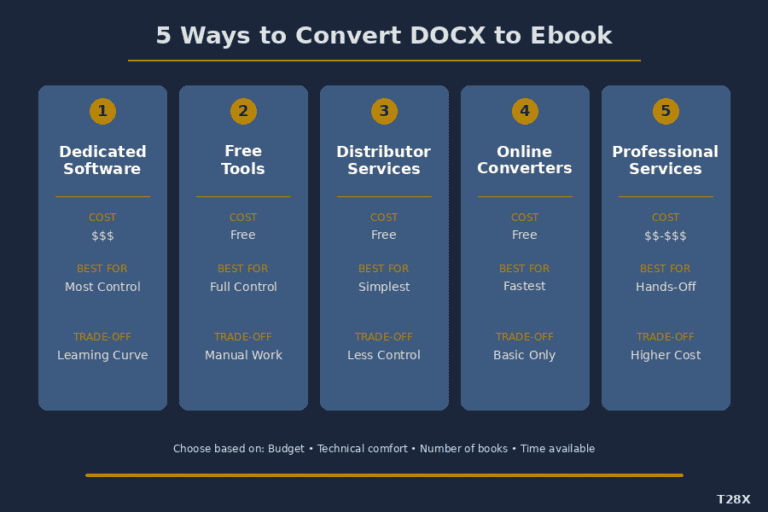
Method 1: Dedicated Ebook Software
Specialized formatting applications offer the most control over your final product. These tools understand book structure—front matter, chapters, back matter—and produce clean, professional output.
Best for: Authors publishing multiple books, anyone who wants precise control over formatting and styling.
What to expect: A learning curve measured in hours, not minutes. Investment of time upfront pays dividends across every book you publish.
General workflow:
- Import your DOCX file
- Verify chapter structure imported correctly
- Apply formatting themes and styles
- Configure front and back matter
- Export to EPUB, MOBI, or PDF
Considerations: Some premium options are platform-specific (Mac-only, Windows-only, or browser-based). Pricing ranges from free to several hundred dollars. Evaluate based on your operating system, budget, and how many books you plan to produce.
Common tools in this category: Vellum, Atticus, Jutoh, Scrivener (with compile feature), Calibre (free).
Method 2: Free Conversion Software
Open-source and free tools can produce professional results if you’re willing to invest time in learning their interfaces.
Best for: Budget-conscious authors, technical users comfortable with less polished interfaces, one-off conversions.
What to expect: Functional but utilitarian interfaces. More manual configuration required. Excellent results possible with patience.
General workflow:
- Install software locally
- Import DOCX or paste content
- Configure metadata (title, author, description)
- Adjust chapter detection settings
- Export to desired format
Considerations: Free tools often require more cleanup of imported content. Chapter detection may need manual correction. Output quality depends heavily on how well your source document is structured.
Common tools in this category: Calibre, Sigil, Kindle Create (Amazon’s free tool).
Method 3: Distributor Conversion Services
Major ebook distributors offer free formatting as part of their publishing service. Upload your DOCX, and they convert it for you.
Best for: Authors who want simplicity and don’t need pixel-perfect control, first-time publishers testing the waters.
What to expect: Automated conversion with limited customization. Results range from acceptable to excellent depending on your source document’s structure.
General workflow:
- Create account with distributor
- Upload DOCX during book setup
- Preview converted ebook
- Make adjustments if needed
- Download converted file (some platforms) or proceed to publish
Considerations: Some platforms let you download the converted EPUB for use elsewhere. Others only convert for publishing through their system. Quality varies significantly based on how cleanly your Word document is formatted.
Common services in this category: Draft2Digital, Amazon KDP, Smashwords, PublishDrive.
Method 4: Online Conversion Tools
Web-based converters offer quick, simple conversion without installing software.
Best for: Quick tests, simple documents, situations where you can’t install software.
What to expect: Basic conversion with minimal formatting options. Upload, click, download.
General workflow:
- Navigate to conversion website
- Upload DOCX file
- Select output format
- Download converted file
Considerations: Free online tools vary wildly in quality and trustworthiness. Some inject advertisements or watermarks. Some have file size limits. Privacy-conscious authors should evaluate whether uploading manuscripts to third-party servers aligns with their comfort level.
Common services in this category: Various online converters (research current options and reviews before uploading manuscripts).
Method 5: Professional Formatting Services
Hire someone to handle the conversion for you.
Best for: Authors who value time over money, complex formatting requirements, anyone who tried DIY and got frustrated.
What to expect: Hands-off experience. Provide your manuscript, receive finished files. Pricing typically ranges from $50 to $500+ depending on complexity and provider reputation.
General workflow:
- Research and select a formatter
- Submit manuscript and specifications
- Review proof files
- Request revisions if needed
- Receive final deliverables
Considerations: Quality varies enormously. Vet portfolios carefully. Get samples of previous work. Clarify exactly what file formats you’ll receive and whether revisions are included.
Where to find formatters: Freelance marketplaces, author community recommendations, publishing service directories.
Which Method Should You Choose?
If you’ll publish multiple books: Invest in learning dedicated ebook software. The upfront time investment pays off quickly.
If you’re publishing one book and budget is tight: Try distributor conversion services first. Draft2Digital’s free formatting works well for cleanly structured manuscripts.
If you’re technical and patient: Free tools like Calibre offer full control at no cost.
If your time is worth more than money: Hire a professional formatter and focus on writing your next book.
If you just need to test something quickly: Online converters work for quick checks, but don’t rely on them for final production files.
The Source Document Matters Most
Every conversion method works better when your DOCX file is properly structured.
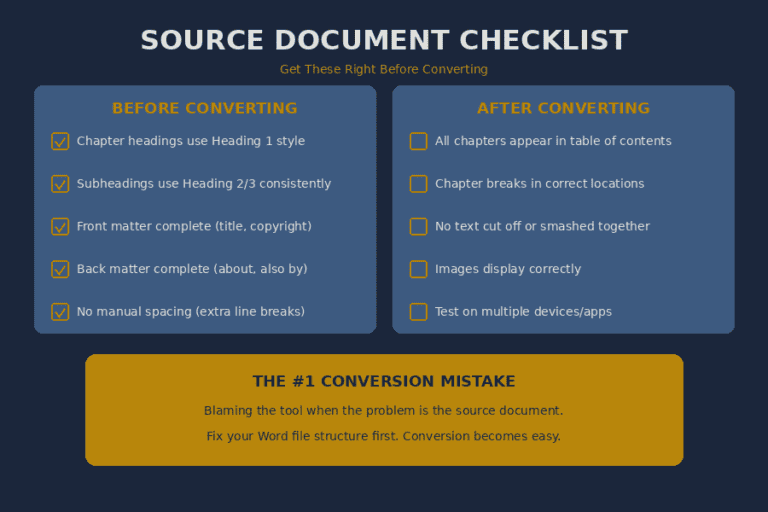
Chapter headings should use Word’s built-in Heading styles (Heading 1, Heading 2), not just bold or large text. Conversion tools detect chapters by looking for these styles.
Consistent formatting throughout prevents conversion errors. If some chapters use Heading 1 and others use manually formatted text that looks similar, the converter will miss chapters.
Clean paragraph breaks mean using Enter once between paragraphs, not multiple times for spacing. Let styles control spacing.
No manual page breaks mid-chapter unless intentional. Section breaks for new chapters are fine.
Simple tables and images convert more reliably than complex layouts. If your book requires intricate formatting, dedicated software or professional services become more important.
The Conversion Checklist
Before converting your DOCX to ebook format:
- All chapter headings use Heading 1 style
- Subheadings use Heading 2 or Heading 3 consistently
- Front matter (title page, copyright, dedication) is in place
- Back matter (about author, also by, etc.) is complete
- No extra paragraph breaks used for spacing
- Images are high resolution and positioned simply
- Table of contents is auto-generated from headings
- Document has been proofread in its final form
After conversion:
- All chapters appear in the table of contents
- Chapter breaks occur in correct locations
- No text is cut off or smashed together
- Images display correctly
- Links function (if applicable)
- Front and back matter are properly positioned
- Test on multiple devices or reading apps
Three Mistakes That Cost Authors Time
Mistake 1: Starting conversion before the manuscript is final.
Every change to your source document means re-converting. Authors who convert early, then make edits, then re-convert, then find more edits, waste hours on repeated work. Finish editing first. Convert once.
Mistake 2: Ignoring the source document structure.
When conversion produces mangled output, authors often blame the tool. Usually, the problem is the Word document. Headers that aren’t really headers, inconsistent styling, manual formatting instead of styles—these create conversion chaos. Fix the source, and conversion becomes simple.
Mistake 3: Testing only on one device.
An ebook that looks perfect in your computer’s preview might break on a Kindle, display strangely in Apple Books, or have issues on Android. Test on multiple platforms before publishing. Your readers use everything.
Frequently Asked Questions
Can I convert a DOCX directly to Kindle format without software?
Amazon’s publishing platform accepts DOCX uploads and converts internally. You don’t need separate software for Kindle-only publishing, though dedicated tools offer more control over the final result.
Do I need different files for different retailers?
EPUB works for most non-Amazon retailers. Amazon accepts EPUB or DOCX and converts to their format. Some authors maintain separate files optimized for each platform; others use a single well-structured source file everywhere.
What happens to my fonts during conversion?
Most ebook formats embed standard fonts or rely on the reader’s device fonts. Custom or unusual fonts may not transfer. Design with common, readable fonts and test the output.
How do I include images in my ebook?
Insert images in your Word document at reasonable resolution. Conversion tools generally preserve images, though quality and positioning may vary. Test extensively if images are central to your book.
Is there a quality difference between free and paid tools?
Not inherently. Well-structured source documents convert cleanly in free tools. Paid tools often offer convenience, better interfaces, and more styling options—not necessarily better output quality.
Can I hire someone to fix a badly converted ebook?
Yes. Professional formatters regularly rescue botched conversions. Expect to pay more than starting fresh would have cost. Prevention (proper source document structure) is cheaper than cure.
What if my conversion looks perfect on my computer but wrong on devices?
Computer preview software doesn’t always match real-device rendering. Always test on actual Kindle devices or apps, actual Apple Books, actual Android readers. What you see on your computer is an approximation, not a guarantee.
Final Thought
Converting DOCX to ebook format is a solved problem. Multiple methods exist at every price point. The authors who struggle aren’t lacking tools—they’re fighting poorly structured source documents or skipping proper testing.
Structure your Word file correctly. Choose a conversion method that matches your needs and budget. Test on real devices. The path from manuscript to published ebook is well-traveled, and every step is documented.
Your book deserves readers. Don’t let file conversion stand in the way.
T28X Publishing helps independent authors navigate every stage of the publishing process—including the technical challenges that shouldn’t be challenges at all.